Overview
Module: Sonarr & Radarr
Activity type: Lab (Practice)
Lab risk: low
Objective: Explain Sonarr's role in a media automation architecture.
Before you start
- A Linux x86_64 host with Python 3, tar, gzip, and standard process-management utilities installed.
- Permission to create and modify files under /opt/lab-classroom/class40/.
- TCP port 8989 must be unused on the laboratory host.
- Outbound HTTPS access to the official Sonarr download service.
- A web browser capable of reaching http://127.0.0.1:8989 from the laboratory host.
- Basic familiarity with Linux paths, processes, and file permissions.
Guided lab
scope
Every filesystem mutation performed by these steps remains below /opt/lab-classroom/class40/. The lab does not install packages, create operating-system users, alter host startup configuration, or create a system-wide service.
steps
Confirm the host architecture with: uname -m. Continue only when the result is x86_64.
Confirm that port 8989 is not already listening with: ss -ltn | grep ':8989'. No output is the desired pre-lab result.
Create the laboratory directories with: mkdir -p /opt/lab-classroom/class40/{app,artifacts,data,data-baseline,home,tmp,dotnet-bundle,xdg-config,xdg-cache,logs,media/tv}
Restrict the workspace so it is accessible only to its current owner with: chmod 700 /opt/lab-classroom/class40
Download the current Sonarr v4 Linux x64 archive over HTTPS with: python3 -c "import urllib.request; urllib.request.urlretrieve('https://services.sonarr.tv/v1/download/main/latest?version=4&os=linux&arch=x64', '/opt/lab-classroom/class40/artifacts/sonarr-linux-x64.tar.gz')"
Check that the downloaded object is a readable gzip-compressed tar archive with: tar -tzf /opt/lab-classroom/class40/artifacts/sonarr-linux-x64.tar.gz | head
Extract the archive into the application directory with: tar -xzf /opt/lab-classroom/class40/artifacts/sonarr-linux-x64.tar.gz -C /opt/lab-classroom/class40/app --strip-components=1
Confirm that the executable exists with: test -x /opt/lab-classroom/class40/app/Sonarr && echo 'Sonarr executable is present'
Create a loopback-only initial configuration with: python3 -c "from pathlib import Path; Path('/opt/lab-classroom/class40/data/config.xml').write_text('<?xml version=\"1.0\" encoding=\"utf-8\"?>\n
Save the pre-start configuration as a rollback baseline with: cp -a /opt/lab-classroom/class40/data/. /opt/lab-classroom/class40/data-baseline/
Start Sonarr with all configurable runtime paths inside the class workspace by running: cd /opt/lab-classroom/class40; HOME=/opt/lab-classroom/class40/home TMPDIR=/opt/lab-classroom/class40/tmp XDG_CONFIG_HOME=/opt/lab-classroom/class40/xdg-config XDG_CACHE_HOME=/opt/lab-classroom/class40/xdg-cache DOTNET_BUNDLE_EXTRACT_BASE_DIR=/opt/lab-classroom/class40/dotnet-bundle nohup ./app/Sonarr -nobrowser -data=/opt/lab-classroom/class40/data > /opt/lab-classroom/class40/logs/console.log 2>&1 & printf '%s\n' "$!" > /opt/lab-classroom/class40/sonarr.pid
Wait for startup, then verify that the recorded process exists with: kill -0 "$(cat /opt/lab-classroom/class40/sonarr.pid)" && echo 'Sonarr process is running'
Verify loopback listening with: ss -ltn | grep '127.0.0.1:8989'
Open http://127.0.0.1:8989 in a browser on the same host. Complete the first-run authentication prompt using administrator-created values that are not copied into lesson notes or shell commands.
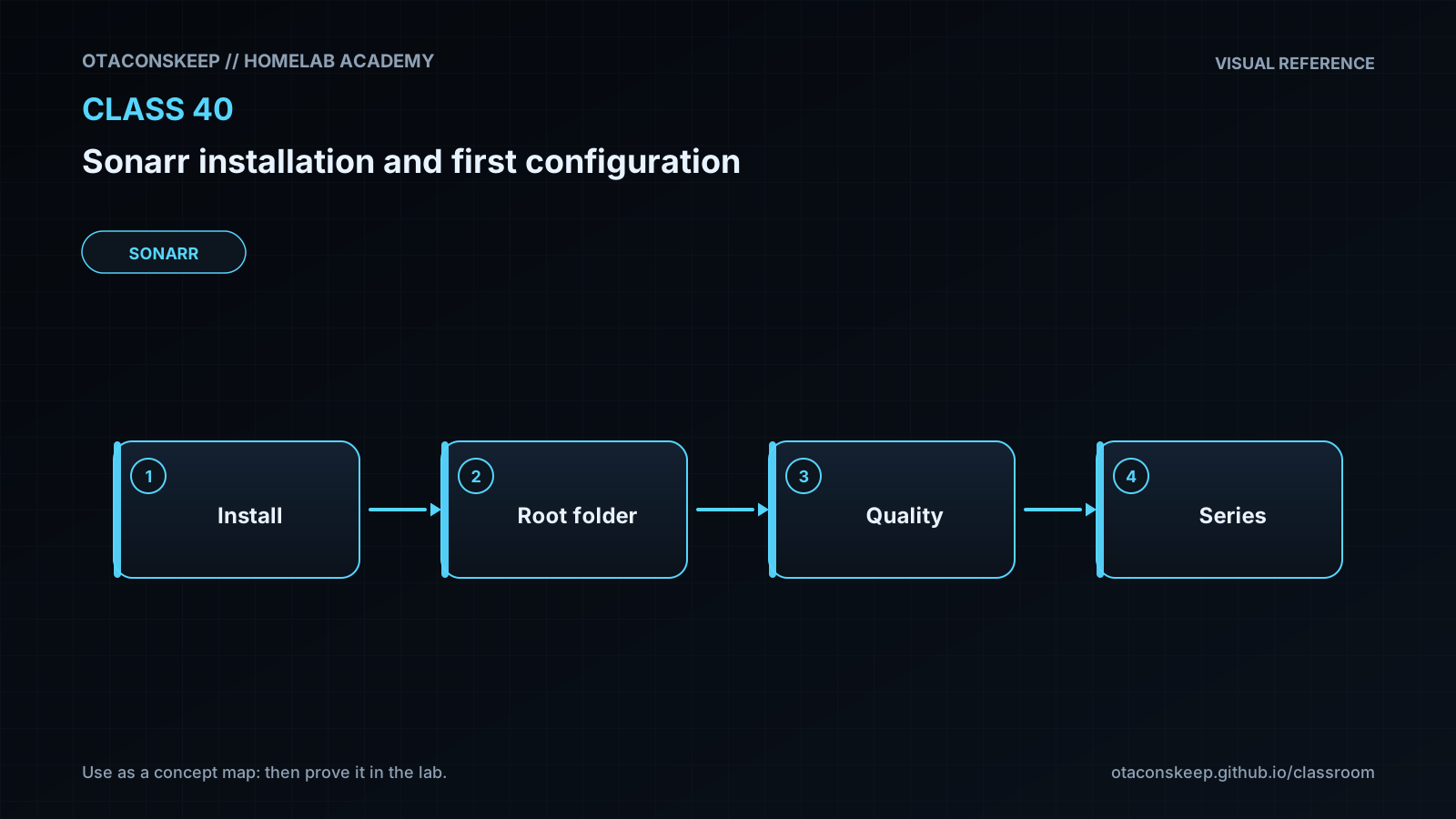
In Sonarr, open Settings, then Media Management. Enable advanced settings if required, select Add Root Folder, and add /opt/lab-classroom/class40/media/tv.
Review the default episode naming and quality-profile behavior without adding indexers or a download client. Preserve defaults unless you can explain the effect of a proposed change.
Open System, then Status, and record the displayed Sonarr version and application-data path in your private lab notes. Do not record authentication material or sensitive application access values.
Review System, then Logs. The absence of a configured download client or indexer is acceptable in this introductory lab.
Stop Sonarr at the end of the lab with: kill "$(cat /opt/lab-classroom/class40/sonarr.pid)"
Confirm shutdown with: while kill -0 "$(cat /opt/lab-classroom/class40/sonarr.pid)" 2>/dev/null; do sleep 1; done; echo 'Sonarr has stopped'
Expected results
- The Sonarr application files exist under /opt/lab-classroom/class40/app/.
- Persistent configuration, database, and log data are created under /opt/lab-classroom/class40/data/.
- The Sonarr process starts successfully and listens only on 127.0.0.1:8989.
- The local browser displays the Sonarr onboarding or main application interface.
- Initial authentication is enabled using administrator-created values that are not embedded in the lesson.
- The path /opt/lab-classroom/class40/media/tv is accepted as a television root folder.
- Sonarr reports its application-data path as /opt/lab-classroom/class40/data.
- Indexer or download-client health notices may remain because those integrations are intentionally outside this lab.
- The recorded process stops cleanly when the lab shutdown command is run.
Verification
- [ ] Run test -x /opt/lab-classroom/class40/app/Sonarr && echo PASS to confirm that the application executable is present.
- [ ] Run kill -0 "$(cat /opt/lab-classroom/class40/sonarr.pid)" && echo PASS while Sonarr is expected to be running.
- [ ] Run ss -ltn | grep '127.0.0.1:8989' and confirm that the listening address is loopback rather than a wildcard address.
- [ ] Visit http://127.0.0.1:8989 and confirm that the authenticated Sonarr interface loads.
- [ ] In System Status, confirm that the application-data directory is /opt/lab-classroom/class40/data.
- [ ] In Settings and Media Management, confirm that /opt/lab-classroom/class40/media/tv appears as a root folder.
- [ ] Run test -f /opt/lab-classroom/class40/data/sonarr.db && echo PASS after first startup to confirm creation of the application database.
- [ ] Inspect /opt/lab-classroom/class40/logs/console.log and the Sonarr Logs page for startup failures without publishing the complete configuration or sensitive application access values.
- [ ] After shutdown, run kill -0 "$(cat /opt/lab-classroom/class40/sonarr.pid)" 2>/dev/null || echo PASS and confirm that PASS is displayed.
Break/fix
| Symptom | Likely cause | Fix |
|---|---|---|
| The archive download fails. | The host lacks outbound HTTPS connectivity, name resolution is failing, or the official download service is temporarily unavailable. | Confirm general network and DNS operation, verify that the official URL is reachable, and retry the Python download command. Do not substitute an untrusted mirror. |
| The tar integrity check reports that the file is not a gzip archive. | The download is incomplete or the service returned an error document instead of the archive. | Inspect the file type with file /opt/lab-classroom/class40/artifacts/sonarr-linux-x64.tar.gz, download it again from the official service, and repeat the tar listing before extraction. |
| The Sonarr executable does not start. | The host architecture is not x86_64, the archive was not extracted correctly, required runtime support is unavailable, or execution is prohibited on the mounted filesystem. | Recheck uname -m, confirm the executable bit, review /opt/lab-classroom/class40/logs/console.log, and use the official build matching the host architecture. This lesson's command is specifically for x86_64. |
| Sonarr reports that port 8989 is already in use. | Another service or another Sonarr process already owns the port. | Use ss -ltnp to identify the existing listener. Stop only a process you own and understand, or conduct the class on an isolated host where port 8989 is free. |
| The browser cannot open the Sonarr interface. | Sonarr is still starting, the process exited, the browser is running on a different machine, or the listener was not created. | Check the PID with kill -0, inspect console.log, and confirm the socket with ss. Because Sonarr is bound to 127.0.0.1, the browser must run on the same host unless a separately secured access method is deliberately configured. |
| The root folder cannot be added. | The directory does not exist or the Sonarr process lacks traversal or write permission. | Confirm that /opt/lab-classroom/class40/media/tv exists and that the account running Sonarr owns or can write to the class workspace. |
| Sonarr displays health notices about missing indexers or download clients. | Those integrations were intentionally not configured in this introductory lab. | Treat the notices as expected for this class. Configure real integrations only after reviewing their authentication, path, and network requirements. |
| A later download completes but Sonarr cannot import it. | The path reported by the download client is not visible to Sonarr, or Sonarr lacks permission to read the source and write the library. | Compare the exact completed-download path seen by both applications, align container mounts if applicable, and grant the minimum required ownership and group access. |
| The shutdown command says that the process does not exist. | Sonarr already stopped or the PID file is stale. | Check console.log for an earlier exit and use ps to confirm whether a Sonarr process owned by the lab user remains. Do not signal an unrelated process. |
Security
The initial interface is bound to 127.0.0.1 so it is not directly exposed to other hosts.
Enable Sonarr authentication during onboarding even when access is currently limited to loopback.
Use unique administrator-created authentication values and keep them out of shell history, screenshots, lesson submissions, and source control.
Treat Sonarr's configuration directory and application-generated access material as sensitive.
Do not publish the complete contents of config.xml or unrestricted diagnostic bundles.
Keep the class workspace restricted to its owner unless a deliberate group-access design is required.
Download application archives only from the official Sonarr service. For production, pin an approved release and validate it using officially published integrity information when available.
Do not expose Sonarr directly to the public internet. Use a deliberately secured access architecture with authentication, encryption, updates, and access controls.
Run Sonarr as a non-privileged dedicated identity in production rather than as the system administrator.
Give Sonarr only the filesystem permissions needed to access its application data, completed downloads, and organized media library.
Review third-party indexers and download clients separately because each integration introduces its own trust boundary.
Back up the Sonarr application-data directory before upgrades or major configuration changes.
Rollback
Stop the process with: kill "$(cat /opt/lab-classroom/class40/sonarr.pid)"
Wait for shutdown with: while kill -0 "$(cat /opt/lab-classroom/class40/sonarr.pid)" 2>/dev/null; do sleep 1; done
Preserve the post-lab application state with: mv /opt/lab-classroom/class40/data /opt/lab-classroom/class40/data-after-lab
Re-create the data directory from the baseline with: mkdir -p /opt/lab-classroom/class40/data && cp -a /opt/lab-classroom/class40/data-baseline/. /opt/lab-classroom/class40/data/
The portable application, downloaded archive, logs, baseline, and preserved post-lab state remain inside /opt/lab-classroom/class40/ for review.
To resume the completed configuration instead of the baseline, stop Sonarr, preserve the current data directory under another name within the class workspace, and rename data-after-lab back to data.