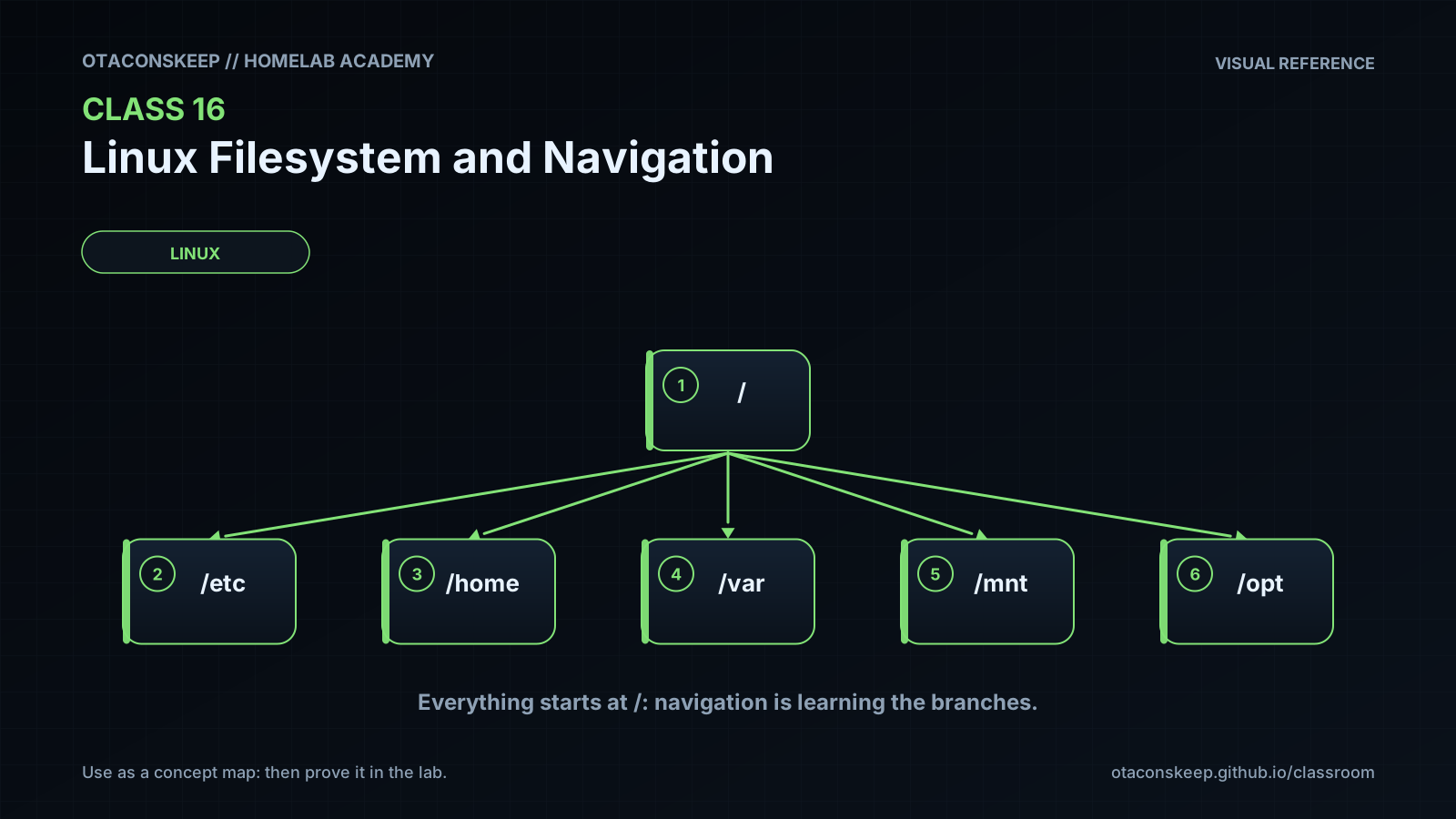
Overview
Module: Linux Foundations
Activity type: Lab (Practice)
Lab risk: low
Objective: Explain the difference between the filesystem root directory and the root user
Before you start
- Access to a Linux shell using a terminal or console
- A user account that can run sudo for creation of the lab directory
- Basic familiarity with entering commands and reading command output
- Completion of earlier command-line fundamentals classes or equivalent experience
Guided lab
scope_rule
Run mutating commands only after setting LAB exactly to /opt/lab-classroom/class16. Do not substitute another path. Inspection commands may report system information, but every file or directory created, changed, moved, linked, or removed by this lab must remain beneath the lab directory.
steps
step
1
title
Create and validate the controlled workspace
commands
export LAB=/opt/lab-classroom/class16
test "$LAB" = /opt/lab-classroom/class16 || { printf '%s\n' 'Unexpected LAB value' >&2; exit 1; }
sudo install -d -o "$USER" -g "$(id -gn)" "$LAB"
cd "$LAB"
pwd
explanation
The equality test is a guard against an accidental variable value. install creates the lab directory with ownership assigned to the invoking user. pwd must print the exact controlled path before continuing.
step
2
title
Build a directory hierarchy
commands
mkdir -p "$LAB/projects/app/config" "$LAB/projects/app/data" "$LAB/archive"
printf '%s\n' 'Class 16 hidden note' > "$LAB/.lab-note"
find "$LAB" -maxdepth 4 -printf '%y %p\n' | sort
explanation
mkdir creates the hierarchy under the absolute lab path. The dot-prefixed note demonstrates a hidden name. GNU find reports each object's type and path.
step
3
title
Practice absolute and relative navigation
commands
cd "$LAB/projects/app/config"
pwd
cd ..
pwd
cd ./data
pwd
cd "$LAB"
pwd
explanation
The first and final cd commands use absolute paths. The middle commands use parent and current-directory components relative to the shell's working directory.
step
4
title
Create, list, copy, and rename files
commands
printf '%s\n' 'Homelab inventory' > "$LAB/projects/app/readme.txt"
printf '%s\n' 'hostname,role' 'lab-node,training' > "$LAB/projects/app/data/inventory.csv"
cp "$LAB/projects/app/data/inventory.csv" "$LAB/archive/inventory.csv.copy"
mv "$LAB/projects/app/readme.txt" "$LAB/projects/app/README.txt"
ls -la "$LAB"
ls -la "$LAB/projects/app" "$LAB/projects/app/data" "$LAB/archive"
explanation
The redirections create regular files inside the workspace. cp creates an independent file, while mv changes the directory-entry name from readme.txt to README.txt.
step
5
title
Create and compare hard and symbolic links
commands
ln "$LAB/projects/app/README.txt" "$LAB/projects/app/README.hard"
ln -s ../README.txt "$LAB/projects/app/config/README.link"
ls -li "$LAB/projects/app/README.txt" "$LAB/projects/app/README.hard"
ls -l "$LAB/projects/app/config/README.link"
readlink "$LAB/projects/app/config/README.link"
readlink -f "$LAB/projects/app/config/README.link"
explanation
README.txt and README.hard should display the same inode number. The symbolic link stores the relative target ../README.txt, which resolves from the config directory.
step
6
title
Inspect metadata and pathname resolution
commands
stat "$LAB/projects/app/README.txt"
stat -c 'name=%n inode=%i links=%h type=%F size=%s' "$LAB/projects/app/README.txt" "$LAB/projects/app/README.hard"
stat -c 'name=%n inode=%i links=%h type=%F size=%s' "$LAB/projects/app/config/README.link"
file "$LAB/projects/app/README.txt" "$LAB/projects/app/config/README.link"
namei -l "$LAB/projects/app/config/README.link"
find "$LAB" -type f -printf '%p\n' | sort
explanation
stat shows inode metadata, file provides a content-oriented description, namei displays each path component, and find selects regular files recursively. Without its link-following options, find classifies the symbolic link separately from regular files.
step
7
title
Demonstrate shared hard-link data
commands
printf '%s\n' 'Hard links share one inode.' >> "$LAB/projects/app/README.hard"
cat "$LAB/projects/app/README.txt"
stat -c 'name=%n inode=%i links=%h size=%s' "$LAB/projects/app/README.txt" "$LAB/projects/app/README.hard"
explanation
Appending through README.hard changes the data observed through README.txt because both names refer to the same inode. The inode numbers and sizes should match.
Expected results
- pwd prints /opt/lab-classroom/class16 immediately after workspace setup.
- The lab contains projects, projects/app, projects/app/config, projects/app/data, and archive directories.
- The default concept of hidden entries is demonstrated by .lab-note, which appears with ls -a or ls -la.
- README.txt and README.hard have the same inode number and a hard-link count of at least 2.
- README.link is reported as a symbolic link and stores ../README.txt as its target.
- readlink -f resolves README.link to /opt/lab-classroom/class16/projects/app/README.txt.
- Reading README.txt after appending through README.hard displays the appended sentence.
- inventory.csv.copy exists independently in the archive directory.
Verification
- [ ] Run test "$(pwd)" = "$LAB" after returning to the workspace; successful verification produces no output and exits with status zero.
- [ ] Run test -d "$LAB/projects/app/config" && test -d "$LAB/projects/app/data" && test -d "$LAB/archive"; all three directory tests must succeed.
- [ ] Run test -f "$LAB/projects/app/README.txt" && test -f "$LAB/projects/app/data/inventory.csv" && test -f "$LAB/archive/inventory.csv.copy"; all regular-file tests must succeed.
- [ ] Run test -L "$LAB/projects/app/config/README.link"; the symbolic-link test must succeed.
- [ ] Run test "$(readlink "$LAB/projects/app/config/README.link")" = '../README.txt'; the stored relative target must match exactly.
- [ ] Run test "$(stat -c %i "$LAB/projects/app/README.txt")" = "$(stat -c %i "$LAB/projects/app/README.hard")"; matching inode numbers confirm the hard link.
- [ ] Run test "$(stat -c %h "$LAB/projects/app/README.txt")" -ge 2; the inode must have at least two hard links.
- [ ] Run grep -Fqx 'Hard links share one inode.' "$LAB/projects/app/README.txt"; the shared content must be visible through README.txt.
- [ ] Run find "$LAB" -mindepth 1 -printf '%y %p\n' | sort and manually confirm that every reported pathname begins with /opt/lab-classroom/class16/.
Break/fix
| Symptom | Likely cause | Fix |
|---|---|---|
| Creating /opt/lab-classroom/class16 reports permission denied. | The current user cannot create directories beneath /opt, or sudo access is unavailable. | Ask the system administrator to create /opt/lab-classroom/class16 and assign it to the lab user. Do not relocate the exercise because the class scope requires the specified path. |
| cd ./data reports that the directory does not exist. | The shell is not currently in /opt/lab-classroom/class16/projects/app, or the hierarchy was not created. | Run pwd, then use cd "$LAB/projects/app" before retrying cd ./data. Re-run the directory creation step if data is absent. |
| The hidden note does not appear in an ls listing. | The default ls view omits names beginning with a dot. | Run ls -la "$LAB" and look for .lab-note. |
| Creating README.hard reports that the file already exists. | The hard link was already created during a previous attempt. | Inspect both paths with ls -li. If their inode numbers match, the required result is already present. |
| Creating the hard link reports an invalid cross-device link. | The source and destination unexpectedly reside on different filesystems, which hard links cannot cross. | Confirm both paths are exactly beneath $LAB and inspect their filesystem identifiers with stat -c '%d %n' on the parent directories. Use the prescribed paths on the same lab filesystem. |
| readlink -f produces no resolved path. | The symbolic link is dangling because README.txt is absent or the stored relative target is incorrect. | Run readlink on the link, verify that README.txt exists in projects/app, and confirm the intended target is ../README.txt from the config directory. |
| README.txt and README.hard have different inode numbers. | One path was copied or independently created instead of being made with ln. | Inspect the two files before changing anything. Roll back the lab using the explicit procedure, then repeat the link-creation step. |
| namei or GNU find formatting options are unavailable. | The host uses a minimal userland or a non-GNU implementation. | Use ls -ld on each pathname component and use find "$LAB" -print as a portable fallback. The core path and link concepts remain the same. |
Security
principles
Treat the current working directory as security-relevant context because relative mutations depend on it.
Use an exact, validated absolute lab path for changes.
Quote all variable expansions and paths so spaces and wildcard characters are not reinterpreted by the shell.
Inspect an object with pwd, ls, stat, or readlink before modifying it.
Remember that a hidden filename is a display convention, not access control.
Directory permissions govern whether names can be created, removed, or traversed, while file permissions govern access to file content.
Symbolic links can redirect pathname resolution, so privileged automation should validate destinations and avoid trusting writable directories.
Do not assume a filename extension proves content type or safety.
Use elevated privileges only for the initial creation and ownership of the controlled workspace.
scope_boundary
/opt/lab-classroom/class16/
data_classification
Training data only; do not place credentials, private keys, tokens, or production configuration in the lab tree.
Rollback
goal
Remove only the objects created by this lesson while preserving /opt/lab-classroom/class16 as an empty classroom directory.
commands
export LAB=/opt/lab-classroom/class16
test "$LAB" = /opt/lab-classroom/class16 || { printf '%s\n' 'Rollback refused: unexpected LAB value' >&2; exit 1; }
unlink "$LAB/projects/app/config/README.link"
unlink "$LAB/projects/app/README.hard"
unlink "$LAB/projects/app/README.txt"
unlink "$LAB/projects/app/data/inventory.csv"
unlink "$LAB/archive/inventory.csv.copy"
unlink "$LAB/.lab-note"
rmdir "$LAB/projects/app/config"
rmdir "$LAB/projects/app/data"
rmdir "$LAB/projects/app"
rmdir "$LAB/projects"
rmdir "$LAB/archive"
find "$LAB" -mindepth 1 -print
notes
Each removal names one known lab object. rmdir refuses to remove a nonempty directory, providing a safety check. The final find command should print nothing. If an unlink command reports that a path is absent, inspect the workspace and continue only after confirming the missing path was part of this lab.