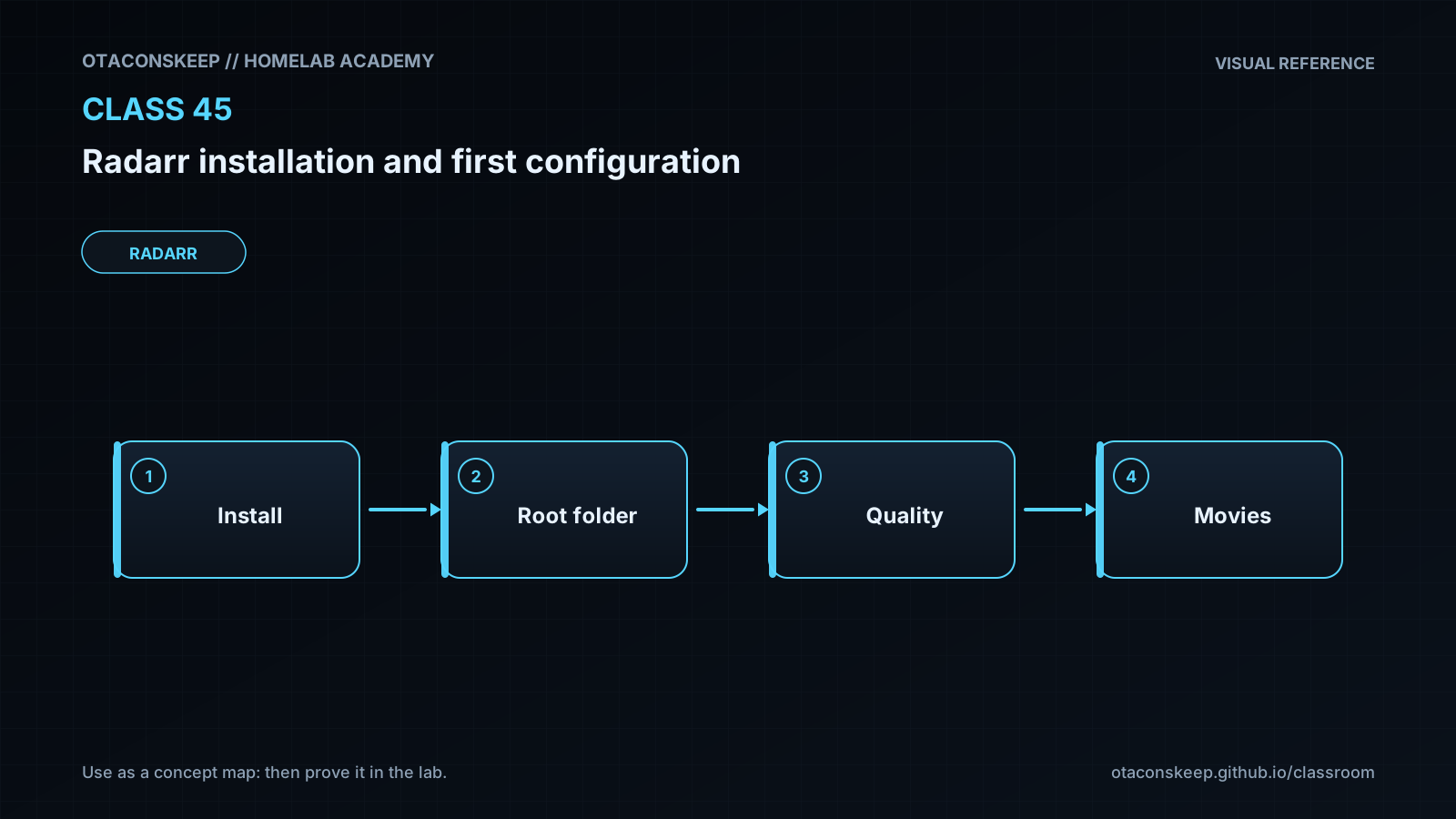
Overview
Module: Sonarr & Radarr
Activity type: Lab (Practice)
Lab risk: low
Objective: Explain Radarr's role in a media automation architecture
Before you start
- A Linux homelab host with Docker Engine and the Docker Compose plugin already installed
- Permission to run Docker commands without changing host-wide configuration
- A web browser that can reach the homelab host on TCP port 7878
- The directory /opt/lab-classroom must already exist and be writable by the learner
- Basic familiarity with containers, bind mounts, ports, and YAML
- No existing service may be using the selected host port
Guided lab
scope_guard
Every file or directory created by the lesson commands is located under /opt/lab-classroom/class45/. Do not substitute production media directories during this classroom exercise.
steps
step
1
title
Confirm Docker and Compose availability
commands
docker --version
docker compose version
id -u
id -g
instructions
Run the checks without installing or reconfiguring anything. Record the numeric user and group identifiers if you want to compare them with the generated environment file.
step
2
title
Create isolated persistent directories
commands
mkdir -p /opt/lab-classroom/class45/config /opt/lab-classroom/class45/media/movies /opt/lab-classroom/class45/downloads
instructions
These directories contain all lesson-created persistent application data and media placeholders.
step
3
title
Create the Compose environment file
commands
printf 'PUID=%s\nPGID=%s\nTZ=Etc/UTC\nHOST_PORT=7878\n' "$(id -u)" "$(id -g)" > /opt/lab-classroom/class45/.env
instructions
The generated PUID and PGID match the current shell user. If port 7878 is already allocated, edit only HOST_PORT in this file and use the new port in subsequent browser instructions. Set TZ to a valid timezone name if local timestamps are preferred.
step
4
title
Create the Radarr Compose definition
commands
cat > /opt/lab-classroom/class45/compose.yaml <<'EOF'
services:
radarr:
image: lscr.io/linuxserver/radarr:latest
container_name: class45-radarr
environment:
PUID: ${PUID}
PGID: ${PGID}
TZ: ${TZ}
volumes:
- /opt/lab-classroom/class45/config:/config
- /opt/lab-classroom/class45/media/movies:/movies
- /opt/lab-classroom/class45/downloads:/downloads
ports:
- "${HOST_PORT:-7878}:7878"
restart: unless-stopped
EOF
instructions
The three bind mounts use explicit host paths so there is no ambiguity about where classroom data is stored.
step
5
title
Validate the resolved Compose model
commands
docker compose --project-directory /opt/lab-classroom/class45 --env-file /opt/lab-classroom/class45/.env -f /opt/lab-classroom/class45/compose.yaml config
instructions
Inspect the rendered output. Confirm that the service has three expected bind mounts and that the selected host port maps to container port 7878 before starting it.
step
6
title
Start Radarr
commands
docker compose --project-directory /opt/lab-classroom/class45 --env-file /opt/lab-classroom/class45/.env -f /opt/lab-classroom/class45/compose.yaml up -d
docker compose --project-directory /opt/lab-classroom/class45 --env-file /opt/lab-classroom/class45/.env -f /opt/lab-classroom/class45/compose.yaml ps
docker compose --project-directory /opt/lab-classroom/class45 --env-file /opt/lab-classroom/class45/.env -f /opt/lab-classroom/class45/compose.yaml logs --tail 100 radarr
instructions
Wait until the logs show that Radarr has started listening. Image download and first initialization duration depends on the host and network, so no fixed startup time is assumed.
step
7
title
Complete initial authentication
commands
instructions
Open http://HOST_ADDRESS:7878 in a browser, replacing HOST_ADDRESS and the port if necessary. When prompted, select an authentication method suitable for interactive administration, create a unique username and strong password, and save. Do not reuse another service's credentials. If the version presents authentication under Settings, open Settings, General, configure authentication, and save.
step
8
title
Review media-management settings
commands
instructions
Open Settings, Media Management. Review movie naming, folder naming, and Completed Download Handling. Leave destructive or large-scale rename actions unused in this empty classroom deployment. Save only settings you understand.
step
9
title
Add the movie root folder
commands
instructions
Open Settings, Media Management, then Root Folders. Add /movies as the root folder. Do not select /downloads: it is a staging path, not the organized library destination.
step
10
title
Inspect quality profiles
commands
instructions
Open Settings, Profiles and inspect an existing quality profile. Identify its accepted qualities, upgrade setting, and cutoff. A production policy should be chosen according to storage, client compatibility, and content preferences; this lab does not prescribe a universal profile.
step
11
title
Review system health
commands
instructions
Open System, Status and System, Health. Record the displayed Radarr version and container-relevant paths. Missing indexer and download-client notices are expected because those integrations are intentionally outside this class.
step
12
title
Test persistence through a controlled restart
commands
docker compose --project-directory /opt/lab-classroom/class45 --env-file /opt/lab-classroom/class45/.env -f /opt/lab-classroom/class45/compose.yaml restart radarr
docker compose --project-directory /opt/lab-classroom/class45 --env-file /opt/lab-classroom/class45/.env -f /opt/lab-classroom/class45/compose.yaml ps
instructions
After Radarr is available again, sign in and confirm that /movies remains configured as the root folder.
Expected results
- The Compose model resolves without a YAML or interpolation error.
- The class45-radarr container is running and publishes the selected host port to container port 7878.
- The Radarr web interface is reachable from the learner's browser.
- Administrative authentication is enabled with learner-selected credentials.
- Radarr accepts /movies as a root folder.
- Configuration files appear beneath /opt/lab-classroom/class45/config/ after first startup.
- The /movies root folder remains configured after a controlled container restart.
- System Health may report missing indexers or download clients because those integrations are intentionally not configured.
Verification
- [ ] Run: docker compose --project-directory /opt/lab-classroom/class45 --env-file /opt/lab-classroom/class45/.env -f /opt/lab-classroom/class45/compose.yaml ps
- [ ] Confirm that class45-radarr is listed as running and that the displayed port mapping ends in container port 7878.
- [ ] Run: docker compose --project-directory /opt/lab-classroom/class45 --env-file /opt/lab-classroom/class45/.env -f /opt/lab-classroom/class45/compose.yaml logs --tail 100 radarr
- [ ] Confirm that the recent logs do not show a repeating startup crash, database-open failure, or permission-denied loop.
- [ ] Sign in through the web interface and confirm that Settings, Media Management lists /movies as a root folder.
- [ ] Open System, Status and confirm that Radarr reports an application version and uses /config for application data.
- [ ] Restart the service with Docker Compose, sign in again, and confirm that authentication and the /movies root folder persist.
- [ ] Run: find /opt/lab-classroom/class45 -maxdepth 2 -type d -print
- [ ] Confirm that the classroom configuration, media, and download directories remain under /opt/lab-classroom/class45/.
Break/fix
| Symptom | Likely cause | Fix |
|---|---|---|
| Docker Compose reports that the host port is already allocated. | Another process or container is already listening on the HOST_PORT value. | Edit /opt/lab-classroom/class45/.env, assign an unused high port to HOST_PORT, start the Compose project again, and browse to the revised port. |
| The browser cannot connect even though the container was started. | Radarr is still initializing, the wrong host address or host port was used, or the container exited. | Check Docker Compose status and recent Radarr logs. Verify the HOST_PORT value in the environment file and use the Docker host's reachable address rather than the container's internal address. |
| The container repeatedly restarts and logs show permission-denied errors under /config. | The PUID or PGID does not represent an identity that can write to the classroom directories, or the directories were created by a different account. | Stop the Compose project, inspect directory ownership and the numeric values in .env, then have the lab administrator assign the classroom directory to the intended lab account. Do not broaden permissions indiscriminately. |
| Radarr refuses to add /movies or reports that the folder is not writable. | The movie bind mount is missing, incorrectly typed, or inaccessible to the configured container identity. | Run the Compose configuration validation command, confirm the host path maps to /movies, inspect recent logs, and correct the mapping or classroom-directory ownership before recreating the service. |
| The selected root folder disappears after a restart. | The /config mount was omitted, changed, or not writable, so Radarr used nonpersistent container storage or could not save its database. | Confirm that /opt/lab-classroom/class45/config maps to /config and that startup logs show no database-write errors. Restore the expected mapping and start the service again. |
| System Health reports that no indexers or download clients are available. | This introductory deployment intentionally does not configure those external services. | Treat these notices as expected for this class. Configure approved indexer and download-client integrations in later classes before expecting automated searches or transfers. |
| A future download completes but Radarr cannot import the reported file. | Radarr and the download client refer to the shared data using different container paths, or Radarr lacks access to the completed file. | Prefer consistent shared container paths between the applications. If the download client is remote and consistency is impossible, configure a carefully tested remote path mapping and verify access permissions. |
| The learner cannot sign in after initial setup. | The username, password, or selected authentication method was recorded incorrectly. | First verify the exact address and credentials. For classroom recovery, stop the service and follow the version-appropriate official Radarr authentication recovery documentation; preserve a copy of the configuration directory before editing application configuration. |
Security
Keep the Radarr administrative interface on a trusted management network and do not publish it directly to the public internet.
Enable authentication during first configuration and use a unique, strong password.
Treat the Radarr API key as a secret because it authorizes programmatic control of the application.
Grant the container identity write access only to the configuration, intended library, and staging directories it requires.
Do not solve permission problems by granting unrestricted access to every local user.
Review release sources and integrations before entering credentials or API keys.
Use encrypted transport through a properly managed reverse proxy if administration must cross an untrusted network.
Pin a tested image version or immutable digest for a production deployment instead of accepting unreviewed image changes automatically.
Back up the persistent /config directory before upgrades or database recovery work.
Do not point this classroom instance at an existing production movie library.
Rollback
goal
Stop Radarr and disable accidental relaunch while preserving all classroom data for inspection or later recovery.
steps
Run: docker compose --project-directory /opt/lab-classroom/class45 --env-file /opt/lab-classroom/class45/.env -f /opt/lab-classroom/class45/compose.yaml down
Run: mv /opt/lab-classroom/class45/compose.yaml /opt/lab-classroom/class45/compose.yaml.disabled
Confirm that class45-radarr no longer appears in: docker ps --filter name=class45-radarr
Leave /opt/lab-classroom/class45/config/, /opt/lab-classroom/class45/media/, and /opt/lab-classroom/class45/downloads/ intact.
restore
Run: mv /opt/lab-classroom/class45/compose.yaml.disabled /opt/lab-classroom/class45/compose.yaml
Validate the Compose model again.
Start the project with the same Docker Compose command used in the lab.
Sign in and confirm that the persisted root-folder configuration is present.